Verismo keeps the recording, the edit, and every export on your Mac. This guide covers the shortest path through the studio and its optional Mac App Store theme purchases.
Current release1.17.2 · build 61
RequiresmacOS 14+
Projects.osmoproj
ExportMP4 · GIF · SRT · VTT
01
Start with the source, not a canvas preset
Choose a display, window, app, or freeform region. System audio is captured by default; microphone and webcam remain optional. Cursor movement and clicks need no Accessibility or Input Monitoring permission.
Grant only what you use
Screen Recording is required. Microphone and Camera are requested only when enabled, and speaker notes are excluded from the captured image.
Pause without losing sync
Pause and resume keeps video, system audio, narration, webcam, and cursor events on the same project timeline.
Bring an existing take
Import a MOV or MP4 from the Library. Verismo wraps it in an editable project without touching the source file.
02
Polish with one renderer
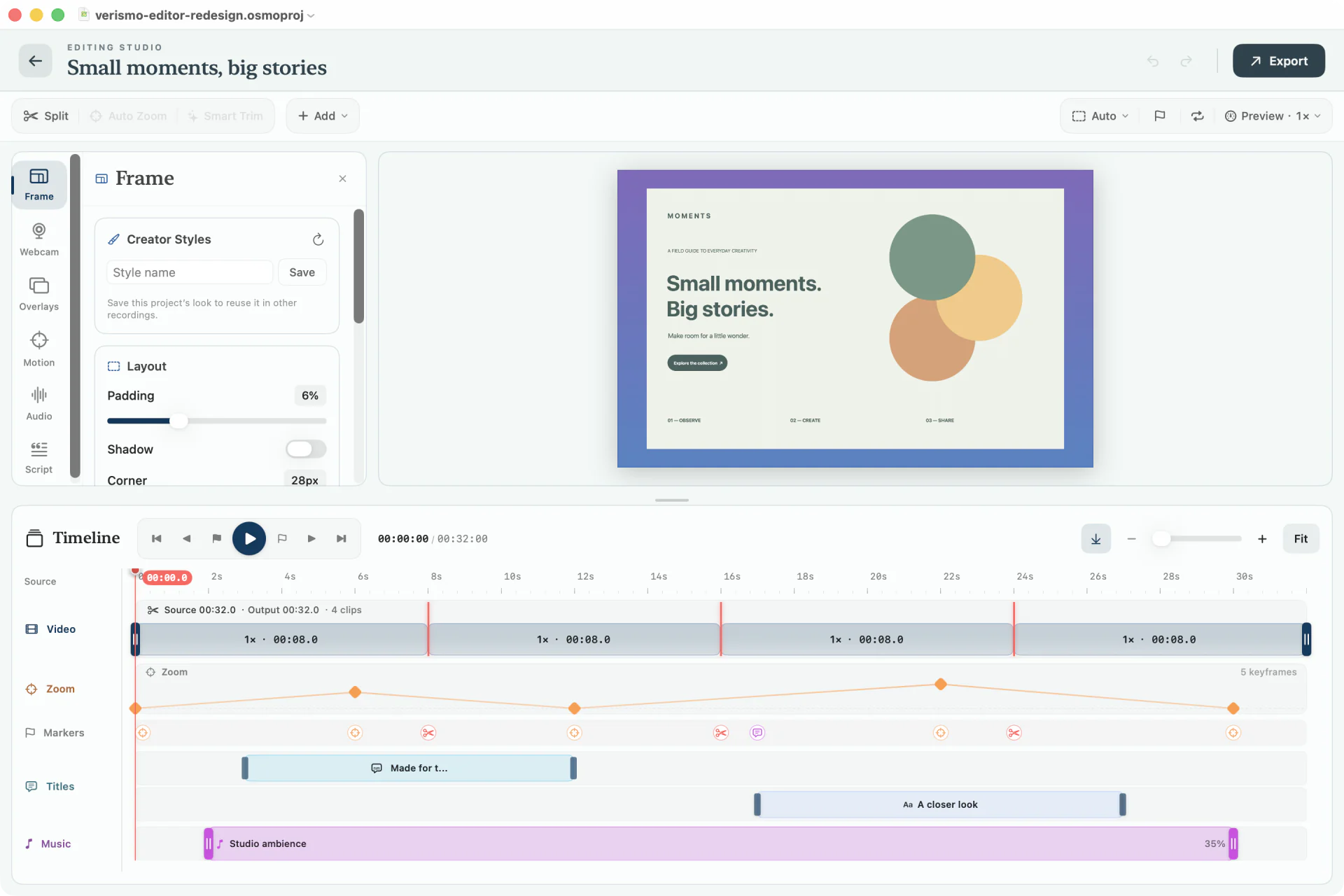
The canvas and exporter share the same rendering path, so framing, click-following zoom, cursor treatment, captions, redaction, webcam, music, voiceover, watermark, and title cards arrive in the file exactly as previewed.
Frame the recording while keeping every track in view.
Use Voice Actions
In the editor, open Voice Actions, then use Voice Control setup for macOS setup guidance. Enable Voice Control in System Settings → Accessibility and speak the names of the controls. Seek by source time, frame, or captured click; select and edit captions; add annotations; split clips; undo; or open export.
Voice Actions uses macOS Voice Control. It does not interpret arbitrary editing requests. Spoken commands may be captured in narration when the microphone is enabled; region capture and detailed geometry still require other controls.
Frame once, publish many ways
Switch between 16:9, 9:16, 1:1, and 4:5 without recording again. Padding, corners, shadows, backgrounds, and themes adapt with the canvas.
Edit ranges, not source media
Cut and restore non-destructively. Captions, annotations, redactions, zooms, and clips each keep stable timeline ranges.
Preview the actual export
The canvas and exporter use the same composition path, including backgrounds, camera, cursor, overlays, captions, audio, and branding.
03
Finish the AI delivery pass in Script
Treat the transcript as timed project data, not a loose document. It drives non-destructive cuts, caption timing, and the Publish Kit that surrounds the final video.
Transcribe: open Script and explicitly send narration audio to Whisper with your own OpenAI key.
Edit: select spoken words, then Cut Selected or Restore Selected to change the matching video ranges.
Caption: enable Clean, Boxed, Outline, or Active Word captions; burn them in or export SRT/VTT.
Publish: generate and review a YouTube title, description, and chapters mapped onto the final output timeline.
AI boundaryNothing is sent until you invoke an AI action. Audio is used for transcription; transcript text is used for refine, translate, and Publish Kit.
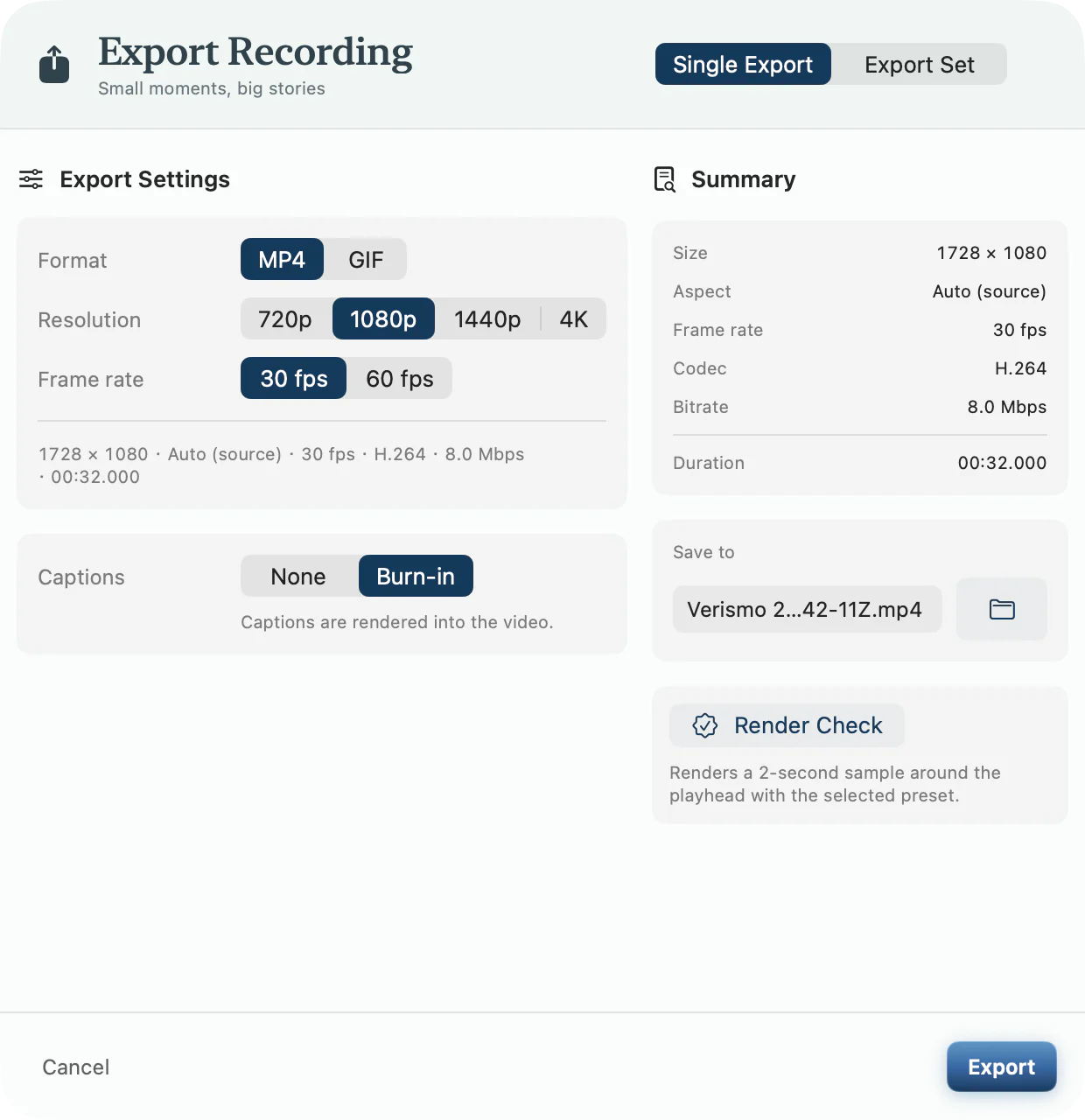
Export H.264 or HEVC MP4 up to 4K/60, optimized GIF, or caption sidecars. Export Sets render YouTube plus Shorts, a four-aspect Social Pack, or MP4 plus GIF in sequence without changing the project.
Review the output settings before exporting.
Mac App StoreFive themes are included. Pop Banana, Utamaro, and Hiroshige are optional one-time purchases, and app updates arrive through the Mac App Store.
05
Know what happens before 100%
Verismo creates the project before capture, shares one finalization task across stop requests, validates the recorded media, exposes interrupted work in Library, and renders exports to a temporary file before committing the chosen destination.
Persist early
The .osmoproj bundle and edit metadata exist before recorder lanes start writing, so the take has an on-disk identity from the beginning.
Recover visibly
Launch recovery restores playable unfinished recordings when possible; unresolved projects stay in Library → Needs Attention.
Commit completely
A failed or cancelled export removes its hidden temporary file. The destination changes only after the media writer finishes successfully.
Ordinary development runs and Verismo-IAP-Dev use Xcode’s local StoreKit catalog, so no real account is charged. App Store Release archives use the approved products for purchase, restore, refund, and revocation.
Open the project and run Verismo-AppStore or Verismo-IAP-Dev.
Open Settings → Developer to inspect product and entitlement state.
Use Debug → StoreKit → Manage Transactions for refund and revocation paths.
Archive the App Store target normally; release validation requires StoreKit and all three approved product IDs.