Verismo v1.14.2

Native screen studio · macOS 14+

Record the screen. Ship the movie.

Record a screen, window, app, or region with webcam and system audio. Auto zoom follows your clicks; captions, original themes, and a professional Library help you finish and find every take. Your footage stays on your Mac.

Native · macOS 14+

The Verismo editor: a recording of the Verismo website framed on a crimson Friday Night backdrop, with a comic-avatar record webcam, the Motion inspector's cursor controls open, and a timeline showing zoom keyframes and the Friday Night music track.

New in 1.14

Give every recording a point of view

Five original, project-local wallpapers frame the footage without sending it anywhere. Every theme is included in production; StoreKit purchase testing stays in the development build.

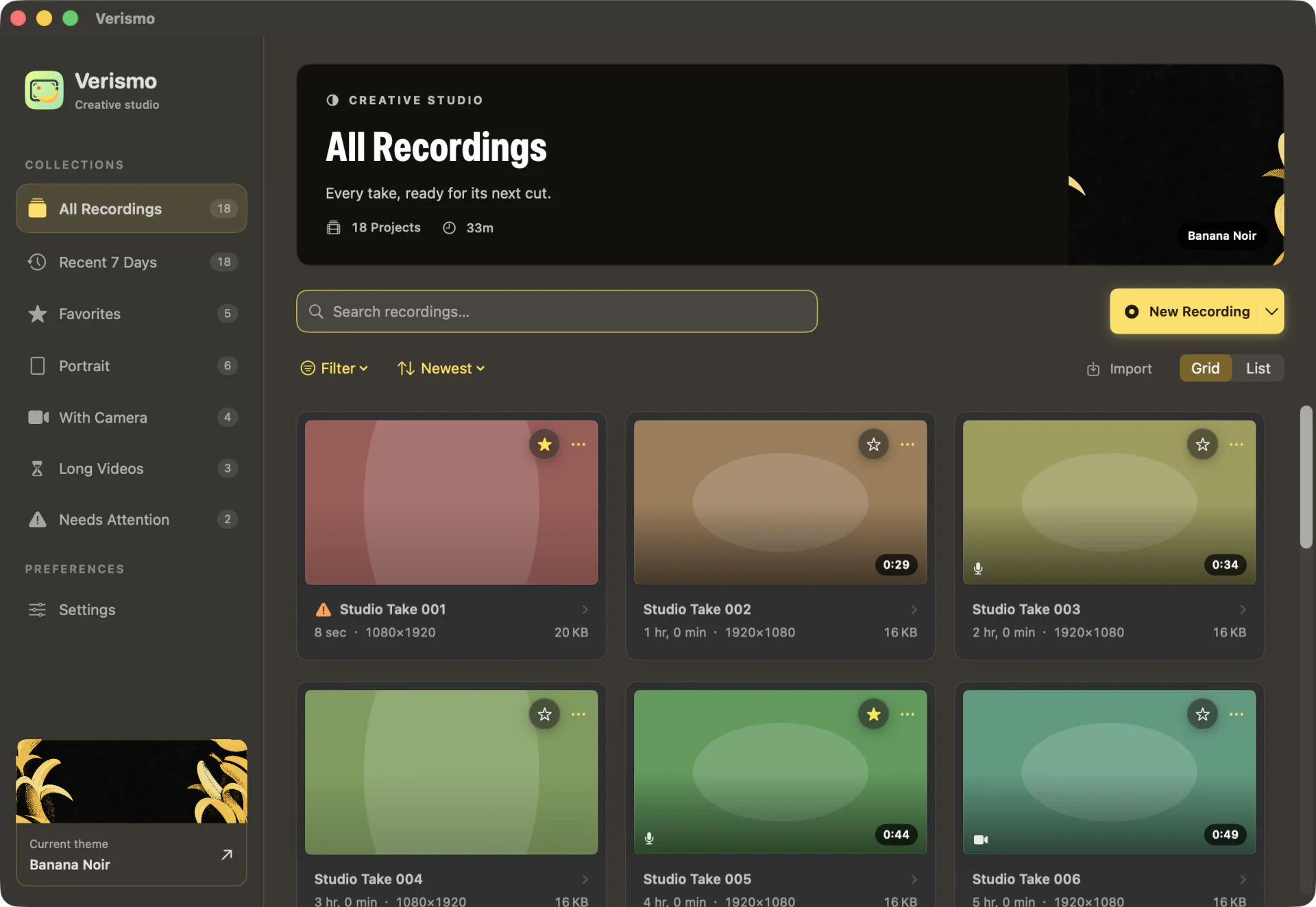
Banana Noir recording theme with gold bananas on a deep black frame

Banana Noir

Included

Golden bananas meet deep black in a minimal frame that keeps the recording in focus.

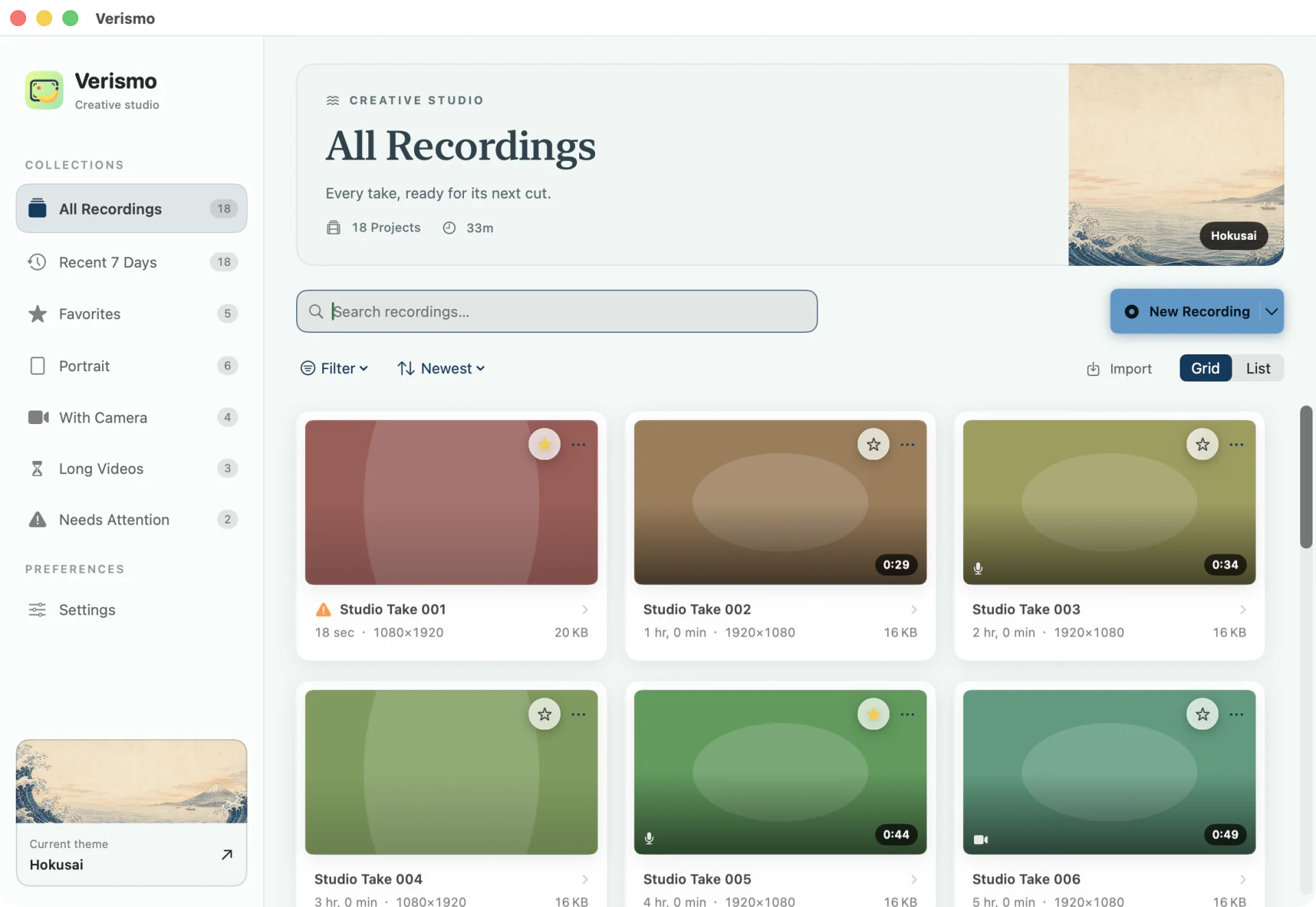
Hokusai-inspired recording theme with indigo sea, pale dawn, and distant Fuji

Hokusai

Included

Indigo water, pale dawn, and distant Fuji in an original woodblock-inspired seascape.

Pop Banana recording theme with vivid original silkscreen colors

Pop Banana

Included

Playful banana forms in vivid, original silkscreen-pop color.

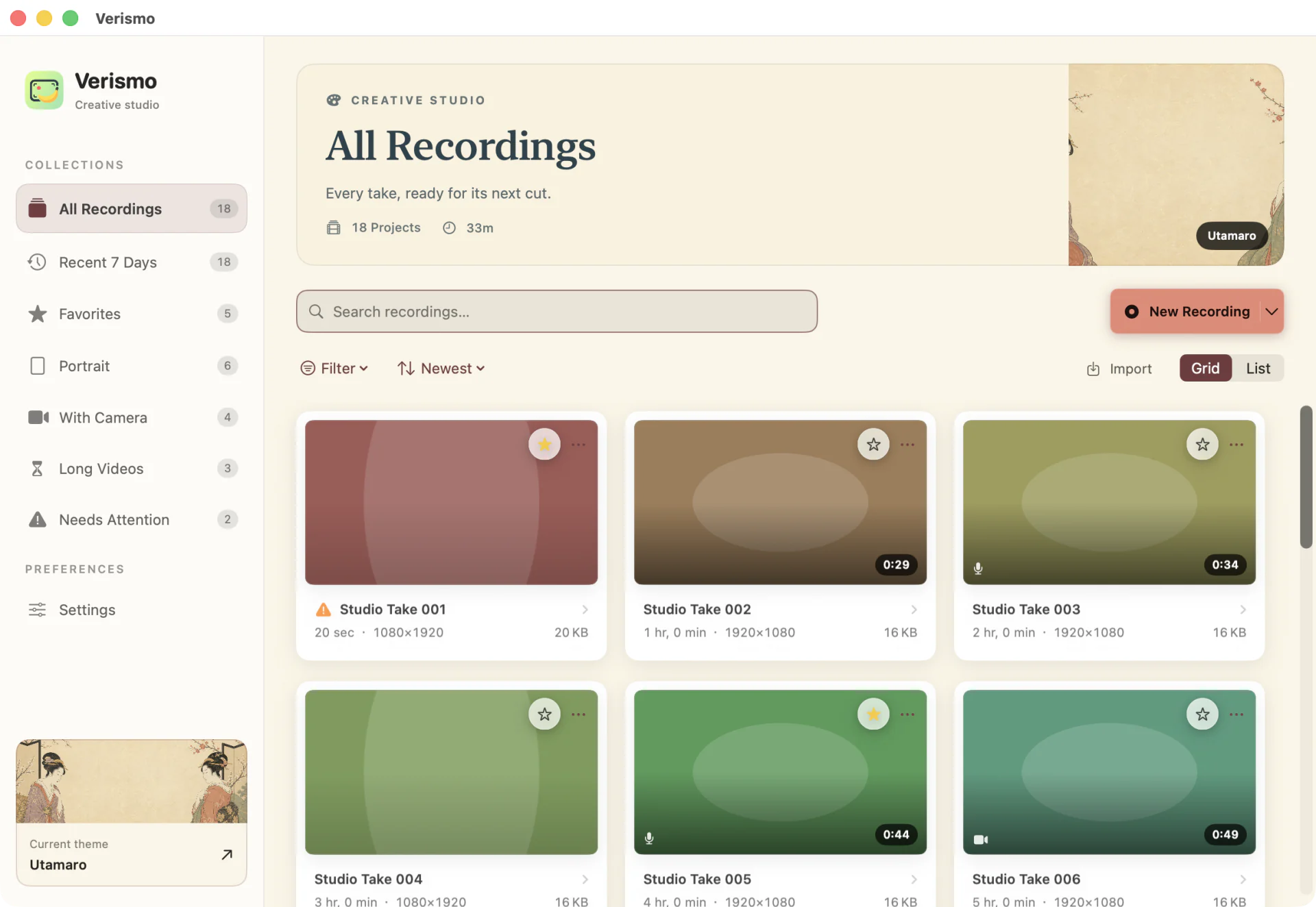
Utamaro-inspired recording theme with elegant figures and plum blossom

Utamaro

Included

Graceful figures, plum blossom, and warm washi in an original bijin-ga composition.

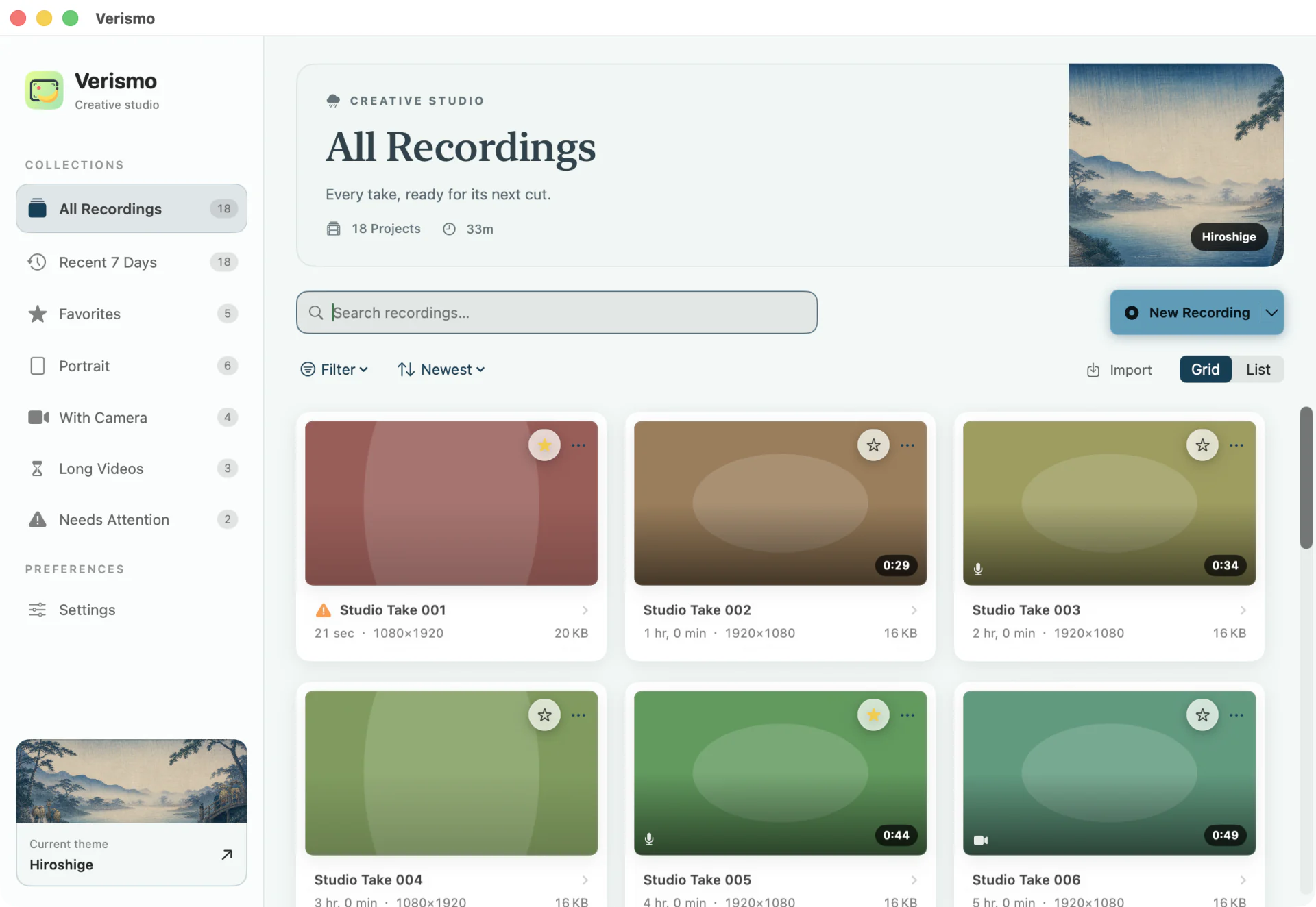
Hiroshige-inspired recording theme with rain-washed blue hills and an Edo bridge

Hiroshige

Included

Rain-washed hills, pines, and an Edo bridge in a lyrical travel-print scene.

Features

Everything between “stop recording” and “looks great”

The same renderer drives the editor preview and the export — what you see is exactly what you ship.

Designed framing

Pad, round, and float the capture on a solid, gradient, blurred, image, or animated procedural backdrop — grid-pulse, dots, waves. Reframe the same recording to 16:9, 9:16, 1:1, or 4:5 for landscape, Reels/TikTok/Shorts, or square posts — no reshoot needed.

Padding
6%
Corner
28px
Canvas
16:9 · 9:16 · 1:1 · 4:5

Auto-zoom from clicks

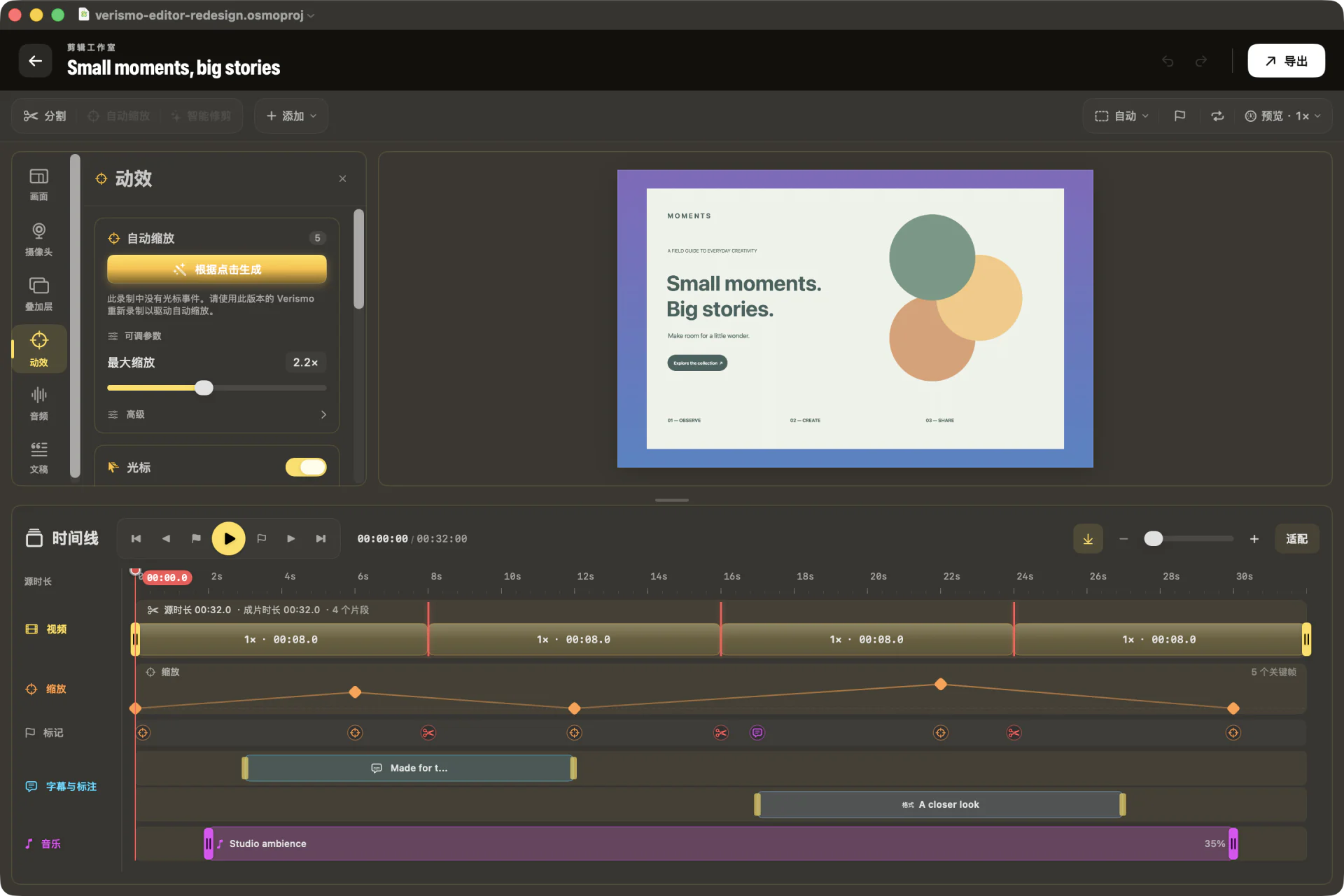
Your click clusters become smoothed zoom keyframes. Hand-edit any of them, or regenerate the whole envelope with one button.

Keyframes
48
Source
Clicks
Ease
Smoothed

A cursor worth watching

A synthetic cursor — dot, ring, arrow, or square — with halo glow and click ripples, smoothed over the raw event stream.

Style
Dot
Smoothing
60%
Ripples
0.60s

A dark studio that wears your theme

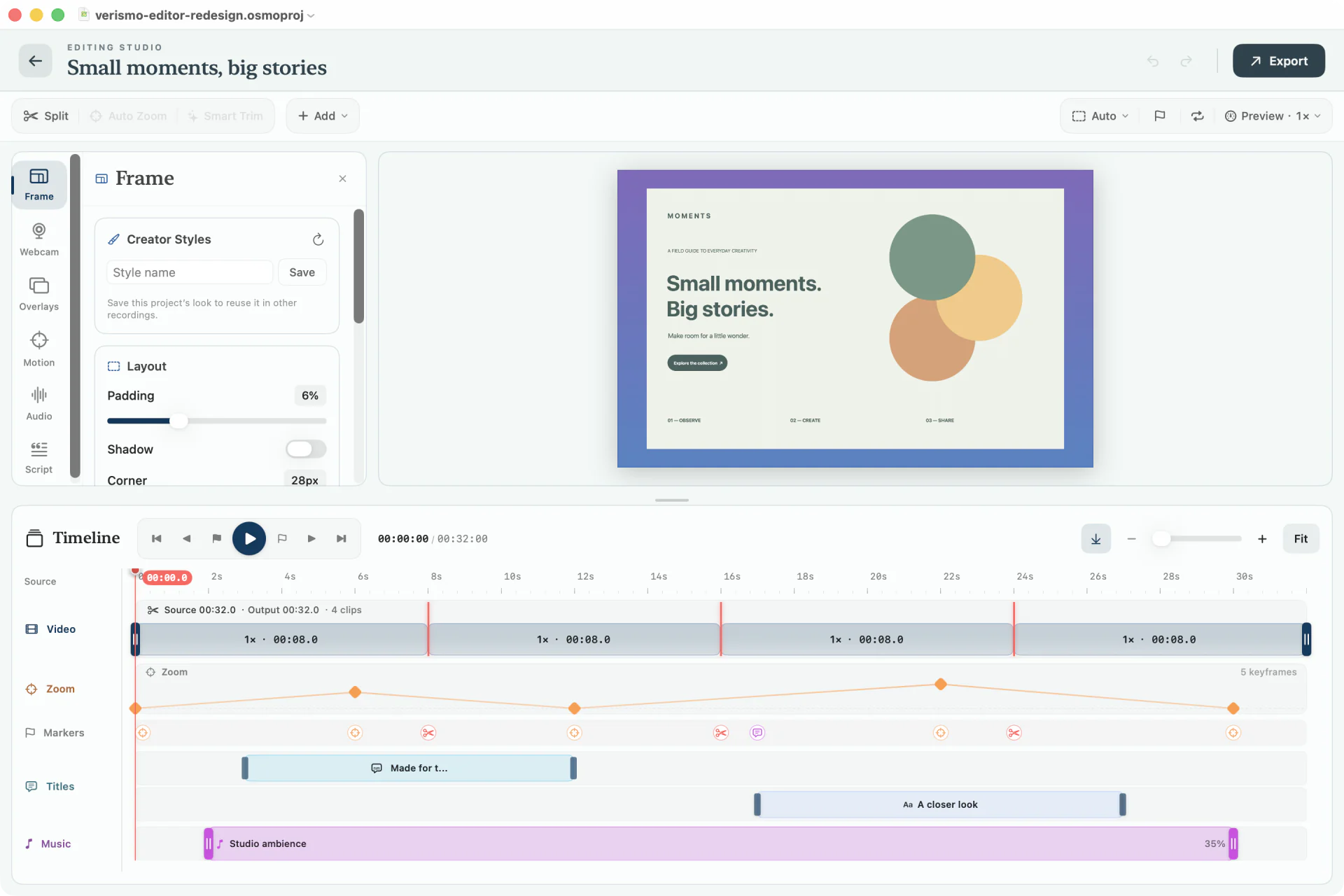
The three-pane editor keeps tools, canvas, timeline, and selection details in view. Choose System, Light, or Dark, then let any theme carry its own color and project-local wallpaper into a new recording.

Workspace
3-pane
Appearance
Dark
Ambience
Per-theme
Verismo’s dark three-pane editor: a sections rail and Script panel on the left, the framed recording over a crimson background in the center with the per-track timeline below, and the selection inspector on the right.

Dim the room, keep the pointer

For a walkthrough, everything but a soft circle around the cursor drops into shadow, and every recorded click gets a quiet synthesized tick — dimming and sound baked right into the export.

Radius
170px
Dim
55%
Click sound
On
Verismo editor’s Motion inspector: Spotlight radius and dim sliders and a Click sound volume slider, while the preview dims everything except a soft circle around the pointer.

Webcam, two ways

Round picture-in-picture in any corner — or a person cutout keyed straight onto your screen content. No green screen needed.

Shape
Circle
Cutout
Person
Position
Bottom-right

Sign your work

A logo watermark in the corner you choose, plus intro and outro cards that hold a title over the first and last seconds. Set it once and it saves with your Creator Style, then prints onto every take.

Watermark
Any corner
Cards
Intro · Outro
Saved with
Your style
Verismo editor’s Branding inspector: a watermark toggle with logo thumbnail, position, size, and opacity controls, plus intro and outro title-card fields — an intro card reading “Verismo 1.1 — Broadcast” over the preview.

Annotations & music

Text, arrows, and highlights scoped to the timeline — plus blur and pixelate redactions (R) for anything the take shouldn't show. An MP3/M4A music bed rides underneath, with trim and volume handles. Everything bakes into the export.

Tools
Text · Arrow · Highlight
Redact
Blur · Pixelate
Music
Trim · Volume

Music that gets out of the way

Lay a track under your voice and it ducks itself — word-accurate when there's a transcript, level-matched from the mic when there isn't. No keyframing the volume by hand.

Duck
−70%
Under
Speech
Timing
Per-word
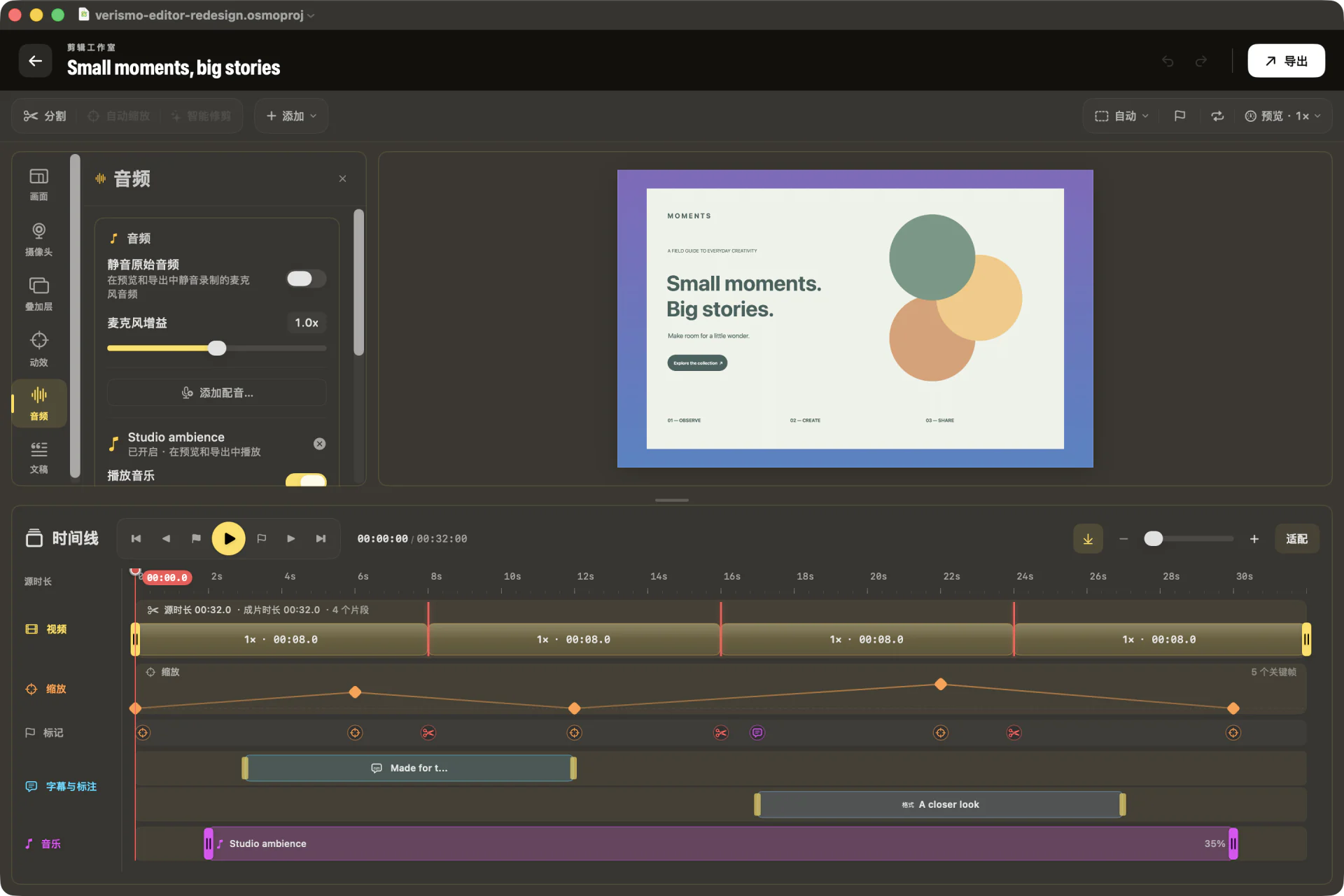
Verismo editor’s Audio inspector: a Friday Night music track with Play music enabled, a Duck under speech toggle, and a duck amount slider at −70%.

Your shortcuts, one source of truth

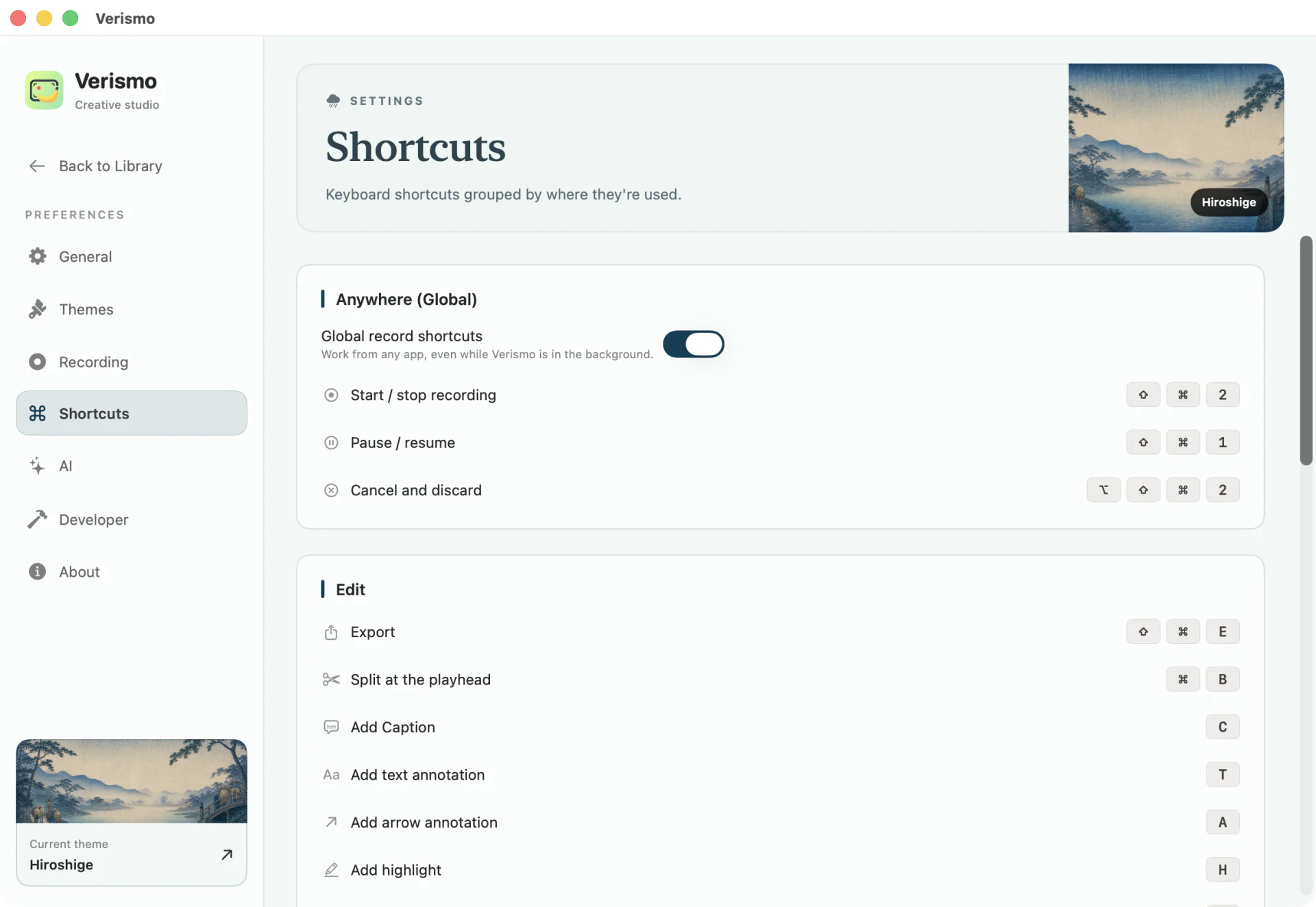
Global recording, app navigation, and editor commands share one registry. Remap the actions you use, see menus and help update instantly, and catch Verismo or macOS conflicts before a key silently fails.

Scopes
3
Conflicts
Detected
Text input
IME-safe
Verismo shortcut settings with remappable global, app, and editor actions and conflict status

Transcripts & captions

Select spoken words to cut or restore the matching video, then render clean, boxed, outline, or active-word captions. Uses your own OpenAI key.

Engine
Whisper
Refine
AI
Captions
Bottom-center

The description writes itself

One pass over the transcript and your timeline markers drafts a YouTube title, description, and chapters — every timestamp mapped onto the cut you actually exported, so a chapter lands where a viewer scrubs. Your key, one click.

Writes
Title · Notes
Chapters
Timed
Runs on
Your key
Verismo editor’s Script inspector: an English transcript in an editable word grid with Refine with AI, Enable Captions, Translate, and Publish Kit buttons.

Speaker notes

A floating teleprompter you read while recording — auto-scroll or drag. It’s excluded from capture, so only you ever see it.

Scroll
Auto
In capture
Never
Position
Top-center

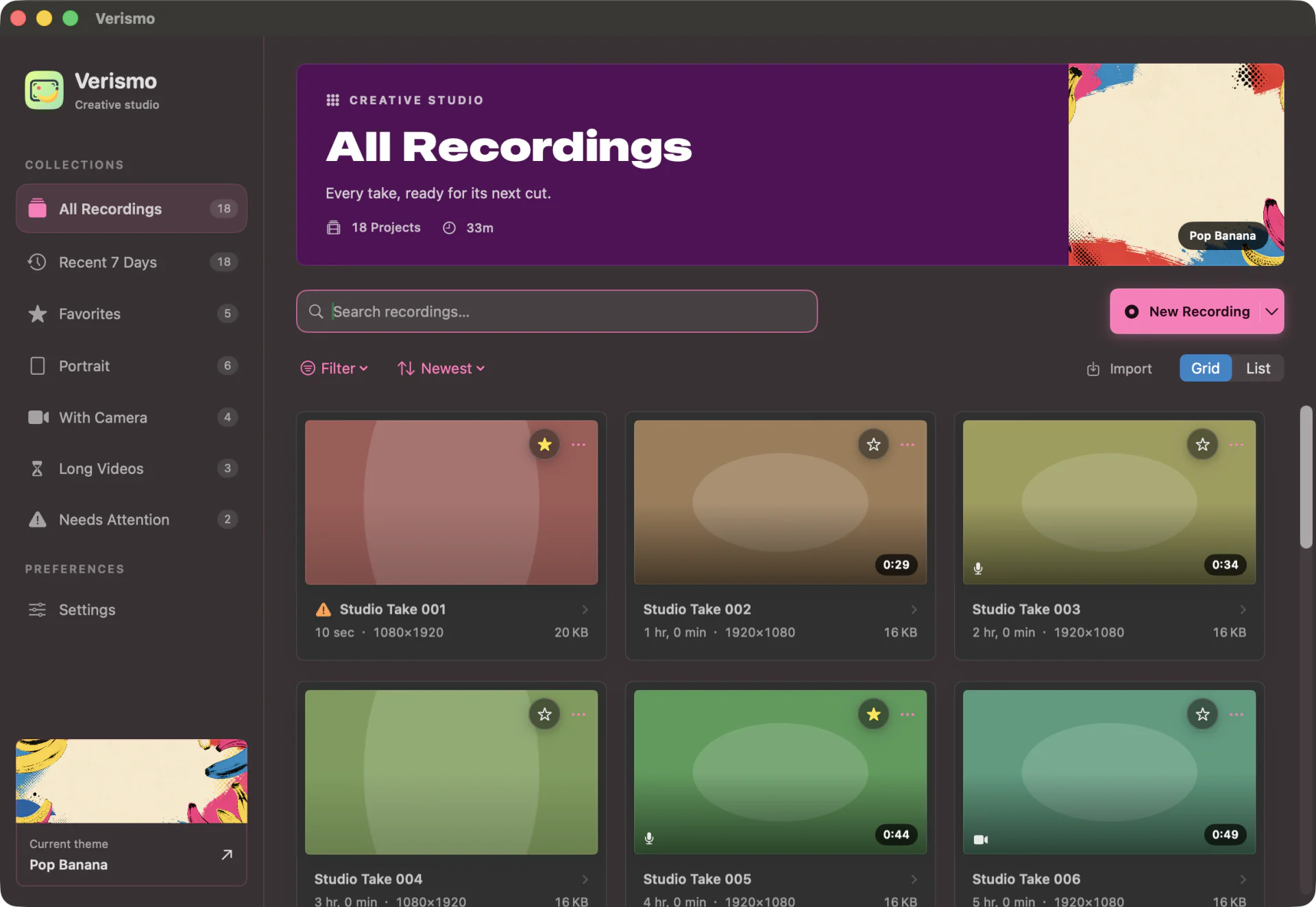
A professional home for every take

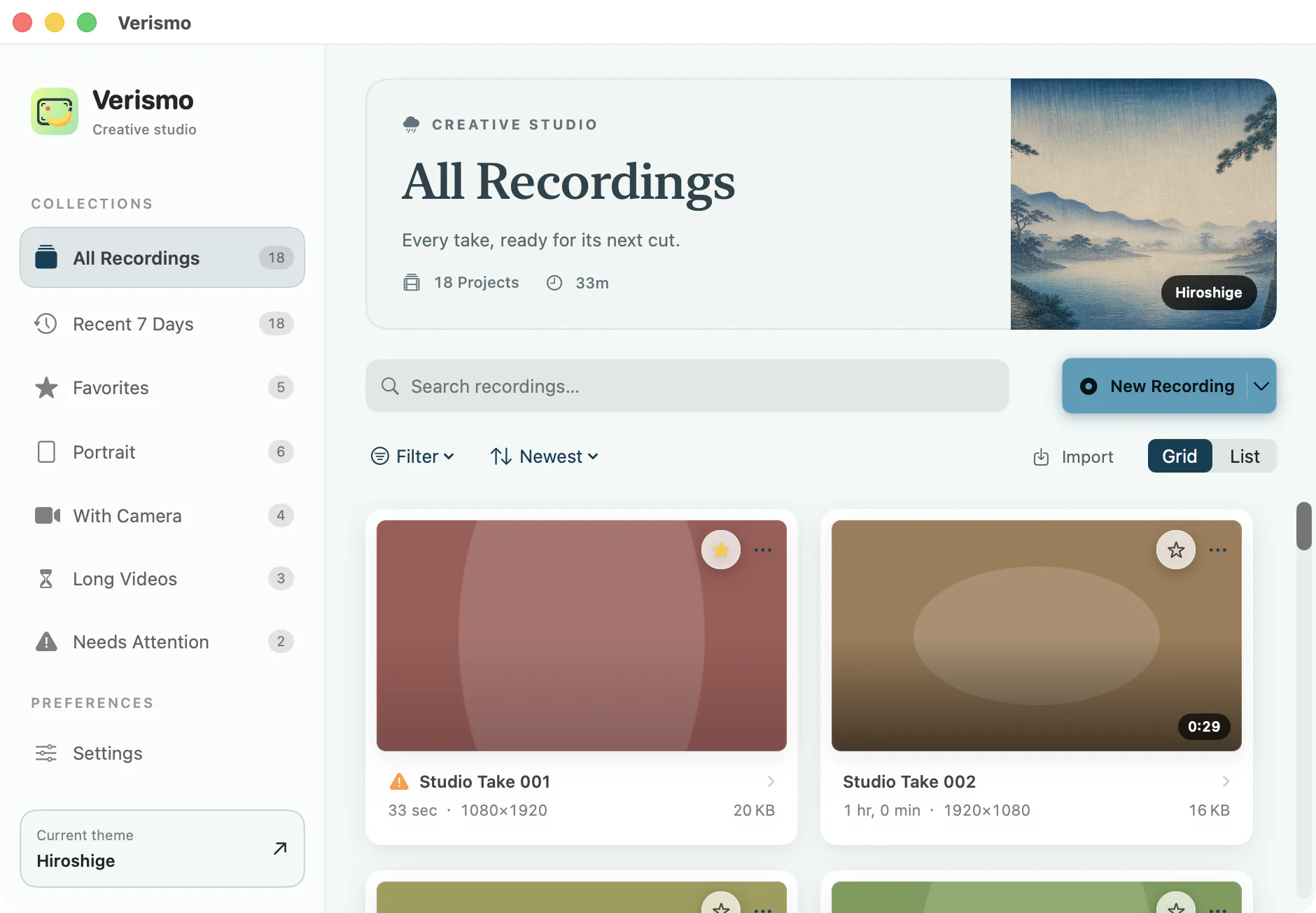
Switch between grid and list views, favorite the keepers, and combine smart collections with aspect, duration, track, search, and sort filters. Recovery items stay visible instead of disappearing.

View
Grid · List
Collections
Smart
Recovery
Visible

Usage

One take, three moves

A recording session in Verismo reads like its own timeline.

Record

Pick a display, arm the mic and camera, and hit the red button on the floating control bar. The bar stays above your windows but out of your recording — and so does the teleprompter you read from. Clicks and cursor moves are logged alongside the video for the edit.

Verismo's floating control bar: status badge reading “Ready — mic + cam”, mic, camera, library and play buttons, a 3-second countdown chip, and the round red record button.

Polish

The take opens in the editor. Generate auto-zoom from your clicks, style the cursor, choose a backdrop, add captions, annotations, and a music bed. Every control renders live.

Export

One Export Set renders the whole run in sequence — every aspect and format you publish to — without touching the project you edited.

FAQ

Before you ask

Short answers to the usual questions.

Which Macs does it run on?

Any Mac running macOS 14 (Sonoma) or later.

Do I need an OpenAI API key?

No. Recording, editing, and export are fully local and never need a network connection. A key only unlocks the optional AI features — transcripts, Refine with AI, captions, and Smart Trim — and you add it yourself in Settings → AI.

Where do my recordings live?

In ~/Movies/Osmo Recordings, as self-contained .osmoproj bundles holding the video, mic audio, cursor log, and your edits. The Library window lists them all; Finder works too.

Do I have to learn the shortcuts?

No — every move is clickable. When you're ready to go faster, press ? in the editor for the built-in cheat sheet, or browse every shortcut on its own page.

Can I polish a video I recorded somewhere else?

Yes. Import a QuickTime .mov or .mp4 (Library → Import, or I) and Verismo turns it into an editable project — framing, zoom, cursorless captions, music, and all.

What exactly does export produce?

A single MP4 that matches the editor preview pixel-for-pixel — same renderer, same frame. Presets cover common sizes (e.g. 1080p30), and the Library can run a queued export across many takes.