01
キャンバスより先に収録元を選ぶ
ディスプレイ、ウインドウ、アプリ、自由範囲から選択します。システム音声は既定で収録し、マイクとWebカメラは任意。カーソル移動とクリックにアクセシビリティや入力監視の権限は不要です。
使うものだけを許可
画面収録は必須です。マイクとカメラは有効にした時だけ要求され、スピーカーノートは録画映像から除外されます。
一時停止しても同期を維持
一時停止と再開の間も、映像、システム音声、ナレーション、Webカメラ、カーソルイベントは同じタイムライン上に保たれます。
既存のテイクを読み込む
ライブラリからMOVまたはMP4を読み込みます。元ファイルを変更せず、編集可能なプロジェクトとして包みます。
02
一つのレンダラーで仕上げる
キャンバスと書き出しは同じ描画経路を使うため、フレーミング、自動ズーム、カーソル、キャプション、隠蔽、Webカメラ、音楽、ボイスオーバー、透かし、タイトルカードがプレビュー通りに届きます。
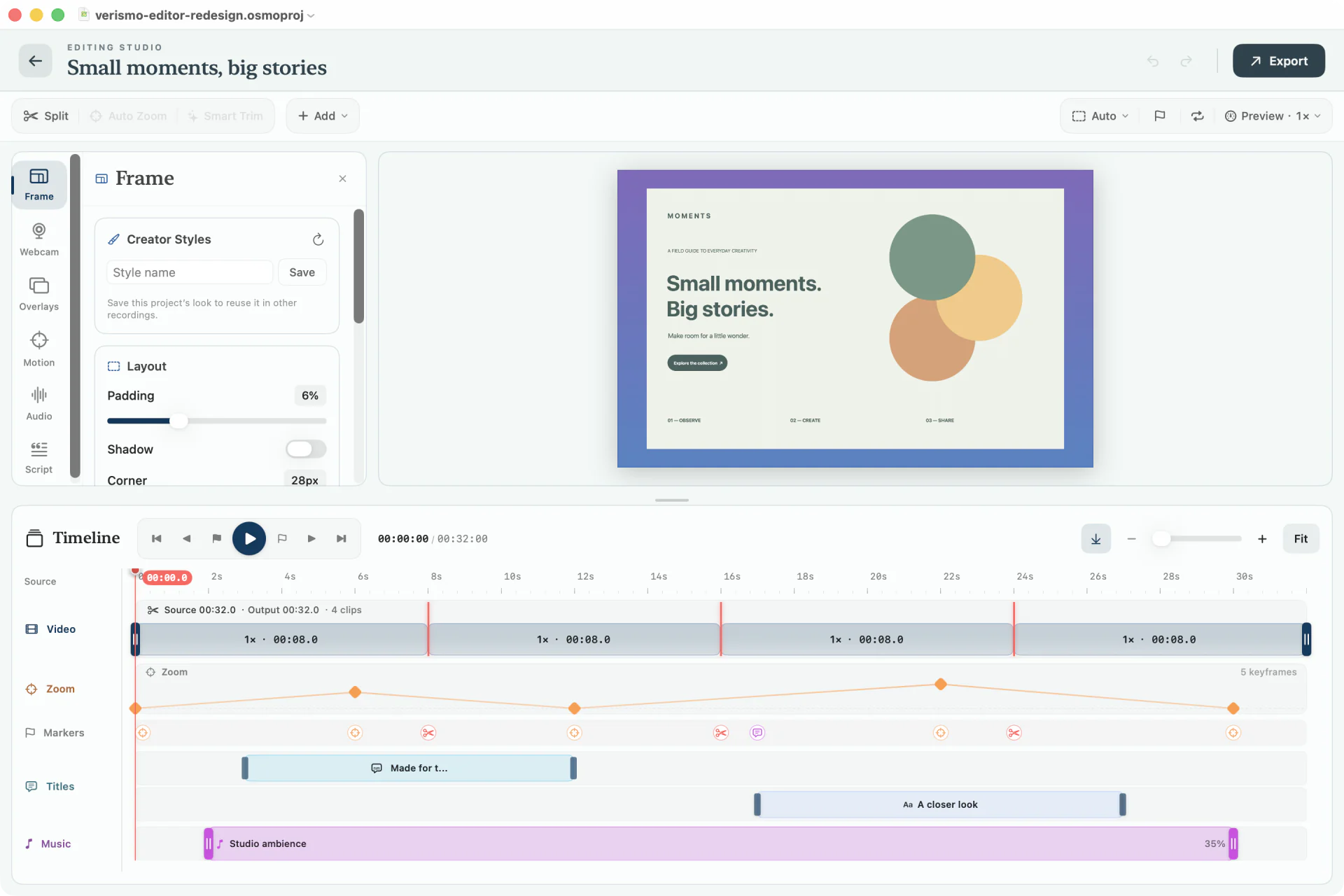 すべてのトラックを見ながら、画面を調整。
音声アクションを使う
エディタで音声アクションを開き、音声コントロールの設定案内を確認します。システム設定 → アクセシビリティで音声コントロールを有効にし、操作の名前を話してください。元動画の時刻、フレーム、記録されたクリックへの移動、字幕の選択・編集、注釈の追加、クリップの分割、取り消し、書き出し画面の表示ができます。
音声アクションはmacOSの音声コントロールを使用し、自由な自然言語による編集依頼を解釈する機能ではありません。マイクが有効な場合、音声コマンドがナレーションに録音されることがあります。領域収録や細かな形状調整には、引き続き別の操作が必要です。
一度のフレーミングで多形式へ
再収録せず16:9、9:16、1:1、4:5へ切り替え。余白、角丸、影、背景、テーマもキャンバスに合わせて適応します。
素材ではなく範囲を編集
非破壊でカットと復元。キャプション、注釈、隠蔽、ズーム、クリップは安定した時間範囲を保ちます。
実際の書き出しをプレビュー
キャンバスと書き出しは、背景、カメラ、カーソル、オーバーレイ、字幕、音声、ブランドを含む同じ合成経路を使います。
03
ScriptでAIデリバリー工程を完了
文字起こしを独立した文書ではなく、時間付きプロジェクトデータとして扱います。非破壊カット、字幕の時刻、完成映像を囲むPublish Kitを動かします。
- 文字起こし:Scriptを開き、自分のOpenAIキーでナレーション音声をWhisperへ明示的に送ります。
- 編集:話した単語を選び、「選択をカット」または「選択を復元」で対応する映像区間を変えます。
- 字幕:クリーン、ボックス、アウトライン、単語強調を有効化。映像へ焼き込むかSRT/VTTを書き出します。
- 公開:最終出力タイムラインへマップされたYouTubeタイトル、説明、チャプターを生成して確認します。
AIの境界
AI操作を実行するまで何も送信されません。音声は文字起こしに、文字起こしテキストは実行した修正・翻訳・Publish Kitに使われます。
成果物とロードマップ境界を見る
04
一つのファイルも完全なセットも
最大4K/60のH.264/HEVC MP4、最適化GIF、字幕ファイルを書き出せます。Export SetはYouTube+Shorts、4アスペクトのSocial Pack、MP4+GIFをプロジェクトを変えずに連続生成します。
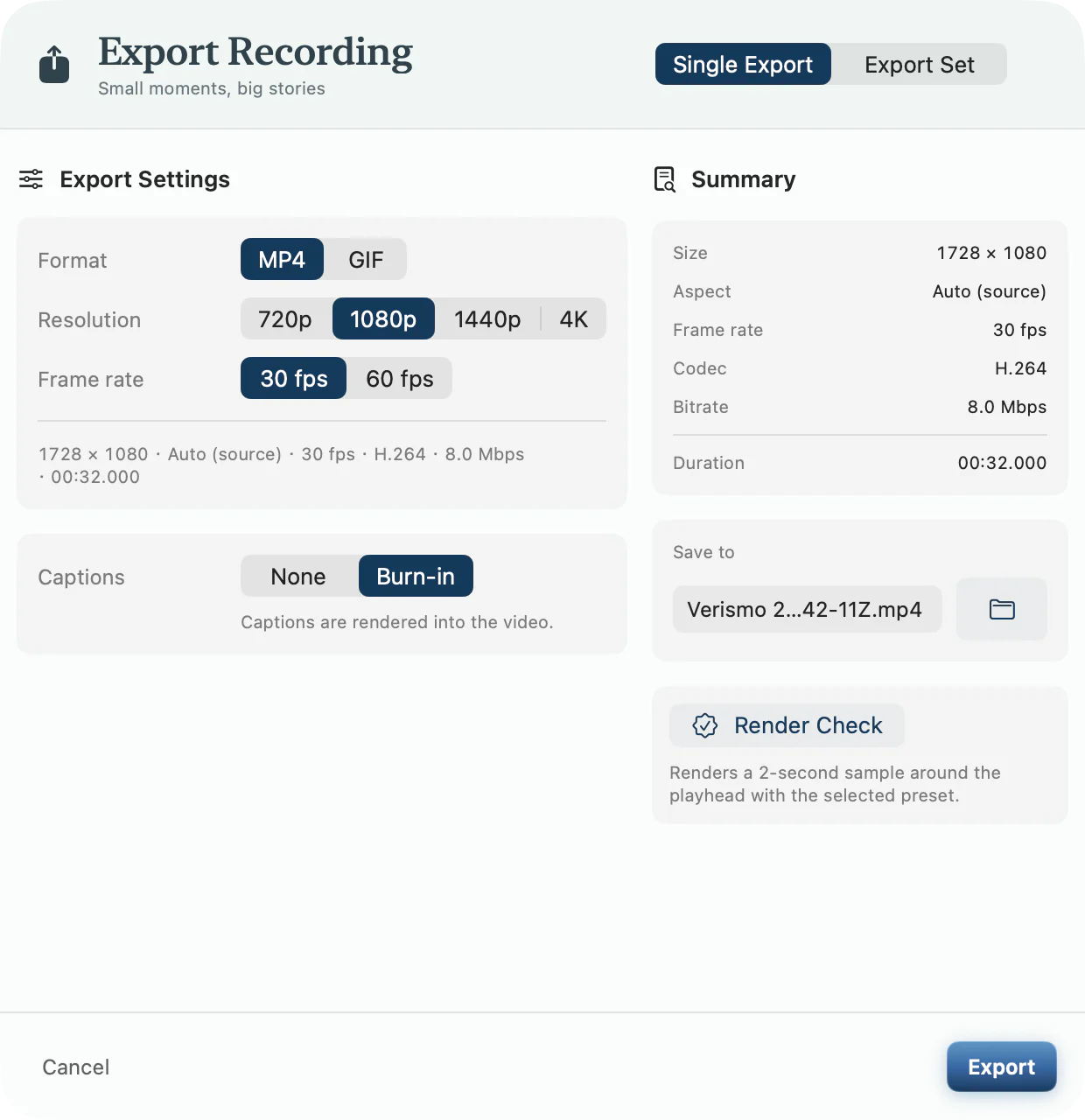 書き出す前に、出力設定を確認。
Mac App Store
5つのテーマを同梱。ポップ・バナナ、歌麿、広重は任意の買い切り購入で、アプリの更新はMac App Storeから届きます。
05
100%の前に何が起きるかを知る
Verismoは収録前にプロジェクトを作り、停止要求で一つの完了タスクを共有し、メディアを検証し、中断作業をLibraryへ出し、一時ファイルへ書き出してから保存先を確定します。
早く保存
.osmoprojバンドルと編集メタデータはレーンの書込開始前に存在し、テイクは最初からディスク上の実体を持ちます。
見える復旧
起動時復旧で再生可能な未完了収録を直し、未解決ならLibrary → 要確認に残します。
完全に確定
失敗・キャンセルした書き出しは隠し一時ファイルを削除します。メディアライターが成功してからだけ保存先が変わります。
仕組みと実装マップを確認
チーム環境へVerismoを導入しますか?ローカルファースト設計、ネットワーク境界、検証手順をセキュリティレビューへ。→
06
ローカルでテストし、App Storeで販売
通常の開発実行とVerismo-IAP-DevはXcodeのローカルStoreKitカタログを使うため、実際のアカウントには請求されません。App Store Releaseは承認済み商品で購入、復元、返金、取り消しを扱います。
- プロジェクトを開き、Verismo-AppStoreまたはVerismo-IAP-Devを実行します。
- 設定 → 開発者で商品と権利の状態を確認します。
- デバッグ → StoreKit → トランザクションを管理、で返金と取り消しをテストします。
- App Storeターゲットを通常通りArchiveします。リリース検証はStoreKitと承認済み3商品IDが入っていることを確認します。